


Resize by pixel width and height
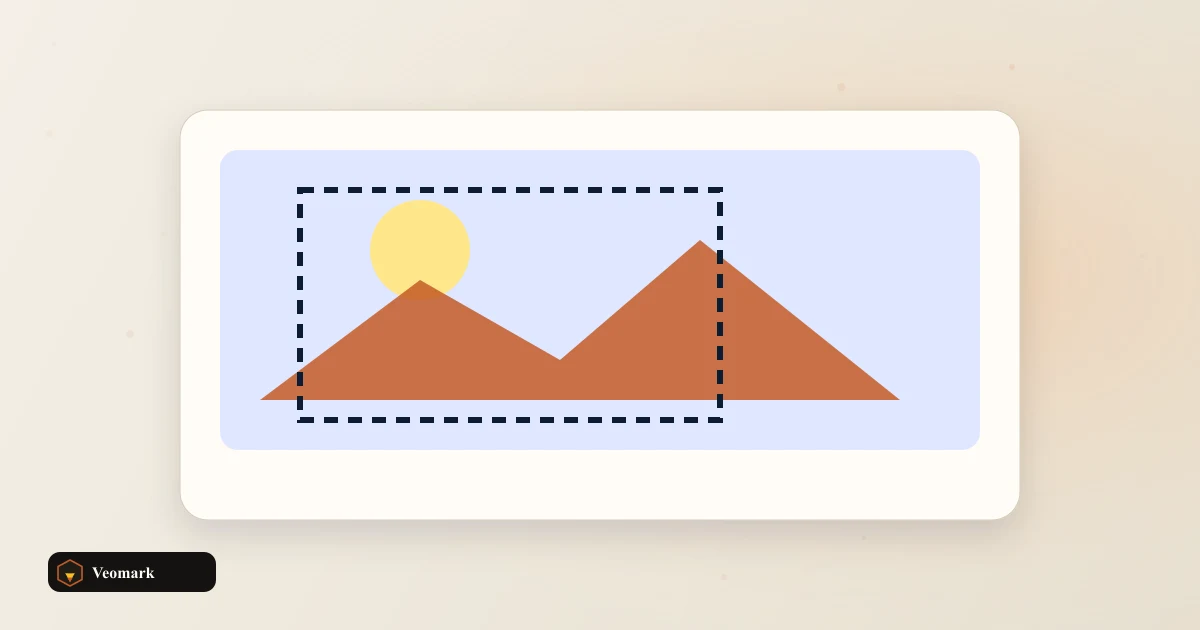
Upload a photo or graphic, set target width and height, preview on canvas, then download a PNG at that size. Lock aspect ratio to avoid stretched images.
Natural dimensions load automatically after upload so you can scale down for web or up for print placeholders without opening desktop software.
Use the Aspect Ratio Calculator first if you only know one side and a ratio like 16:9 or 1:1.
Fit resize into a design workflow
After resize, compress bytes with the PNG Compressor before uploading to a CDN.
Crop math before resize belongs in the Image Crop Ratio Calculator when you need a center crop box on a larger source.
SVG sources may convert through the SVG to PNG Converter when you need a raster starting point.
Quality notes
Upsizing a small image softens detail because canvas interpolation invents pixels. Prefer a higher resolution source when possible.
PNG output is lossless at the new dimensions but file size grows with pixel count. JPEG sources re-encoded as PNG may be larger than the original JPEG.
Rerun when you change target platform specs (hero banner width, email max width, and similar).
Frequently Asked Questions (FAQ)
Which image formats are supported?
Any format the browser can decode: JPEG, PNG, WebP, GIF, and others. Output download is PNG from canvas. GIF animation is not preserved.
How does aspect ratio lock work?
When lock is checked, changing width updates height proportionally and vice versa using the uploaded image natural ratio. Uncheck to set width and height independently.
Are images uploaded to a server?
No. FileReader and canvas run entirely in your browser. Close the tab and the image is gone from memory.
What dimension limits apply?
Width and height must be between 1 and 8192 pixels. Values outside that range show an alert and disable download.